Station Matching
1. Why might you need to do station matching?
Let's imagine you have two lists of rain gauge metadata that are different but are for same underlying rain gauge sites (e.g. Tables 1 & 2). They might be different because the station lists were:
- collected at different times, i.e. older and newer
- collected by different instituions who use their own unique IDs
- collected with different geographic projections (and now have rounding errors)
RainGaugeMatcha will help you match the station lists.
Table 1. List of rain gauge stations from source 1
Table 2. List of rain gauge stations from source 2
2. Running the station matching algorithm
To run the station matching algorithm, your two rain gauge lists will need to have at least these 4 columns: "station_id", "station_name", "easting", "northing". Then you can load in and run the algorithm like this:
import pandas as pd
from raingaugematcha import run_matching_algorithm

station_list_1 = pd.read_csv("path/to/station_list_1.csv")
station_list_2 = pd.read_csv("path/to/station_list_2.csv")

matches, accepted_df, rank_rejected_df, auto_rejected_df = (
    run_matching_algorithm(
        station_list_1,
        station_list_2
    )
)
Saving outputs
If you would like to save the outputs of the algorithm to csv, add save_outputs_to_csv=True to run_matching_algorithm(...) and select a output location with output_dir="outputs/"
2.1 Intepreting the matches
A reminder of the types of matches provided by RainGaugeMatcha:
- Nothing - no matching characteristic, pair is ignored
- Accepted - high quality pairing(s), no better pairing exists
- Rank-Rejected - high quality pairing(s), better pairing exists
- Auto-Rejected - low quality pairings(s), no better pairing exists
Here is what they make look like:
Accepted matches:
Table 3. Accepted matches
Rank-rejected matches:
Table 4. Rank-rejected matches
Auto-rejected matches:
Table 5. Auto-rejected matches
It is now up to the user to interpret and manually check the automatically produced matches (discussed in #3)
Running manual matching
If you would like to save the outputs of the algorithm to csv, add save_outputs_to_csv=True to run_matching_algorithm(...) and select a output location with output_dir="outputs/"
3. Manual station matching
RainGaugeMatcha generates files needed for the manual station matching procedure. In this step of the station matching, you will be able to override matches from the automatic station matching (see 2.). You can generate a python script and/or a notebook, let's generate both below:
import pandas as pd
from raingaugematcha import run_matching_algorithm

station_list_1 = pd.read_csv("path/to/station_list_1.csv")
station_list_2 = pd.read_csv("path/to/station_list_2.csv")

matches, accepted_df, rank_rejected_df, auto_rejected_df = (
    run_matching_algorithm(
        station_list_1,
        station_list_2,
        output_dir='matching_outputs',
        save_outputs_to_csv=True,
        save_manual_matching_script=True,
        save_manual_matching_notebook=True,
    )
)
Overwriting output files
By default run_matching_algorithm(...) will not overwrite any files if you are saving outputs, you can use overwrite_existing=True to overwrite files in output directory
The above code will create two files under matching_outputs/:
manual_station_matching_wo_backups.pymanual_station_matching.ipynb
Each of which provide user input prompts running through a 3-step procedure:
- Check rank-rejected matches
- Check auto-rejected matches
- Check for duplicates in matches
Running station matching without generating files
If you would like to run the station matching and run the manual matching without generating or saving files, please use the procedure from this notebook: src/raingaugematcha/core/manual_station_matching.ipynb.
3.1 Checking rank-rejected matches
To begin the manual checking of the station matches, you can use the generated CSVs for accepted and auto rejected matches:
  import pandas as pd
  from raingaugematcha import manually_process_matches

  # generated by run_station_matching(...)
  accepted_matches = pd.read_csv('accepted.csv')
  rank_rejected_matches = pd.read_csv('rank_rejected.csv')

  # Check rank rejected matches
  accepted_matches_to_replace, rejected_matches_to_accept, accepted_matches_to_remove = (
    manually_process_matches.manually_process_rank_rejected_matches(
      accepted_matches,
      rank_rejected_matches
    )
  )
After you run this, you will get a prompt such as shown below:

Making mistakes when running through the prompts
If you make a mistake whilst responding the prompts, simply interupt the process and run that line again
3.1.1 Updating accepted matches
After you run the user prompts, you can replace and overwrite the matches using these three lines:
  # 1. Remove accepted matches manually rejected
  accepted_matches = (
    manually_process_matches.remove_matches_by_indices(
      accepted_matches,
      idx_to_remove=accepted_matches_to_remove
      )
    )

  # 2. Replace accepted matches with previously rank-rejected
  accepted_matches = (
    manually_process_matches.replace_match_with_new_match(
      accepted_matches,
      old_matches_to_replace=accepted_matches_to_replace
      )
    )

  # 2. Add new matches previously rank-rejected
  accepted_matches = (
    manually_process_matches.add_new_rows_to_match_df(
      accepted_matches,
      new_matches_to_add=rejected_matches_to_accept
      )
    )
3.2 Checking auto-rejected matches
To begin the manual checking of the station matches, you can use the generated CSVs for accepted and auto rejected matches:
  import pandas as pd
  from raingaugematcha import manually_process_matches

  # generated by run_station_matching(...)
  accepted_matches = pd.read_csv('accepted.csv')
  auto_rejected_matches = pd.read_csv('auto_rejected.csv')

  # Check auto rejected matches
  accepted_matches_to_replace, rejected_matches_to_accept, accepted_matches_to_remove = (
    manually_process_matches.manually_process_auto_rejected_matches(
      accepted_matches,
      auto_rejected_matches
    )
  )
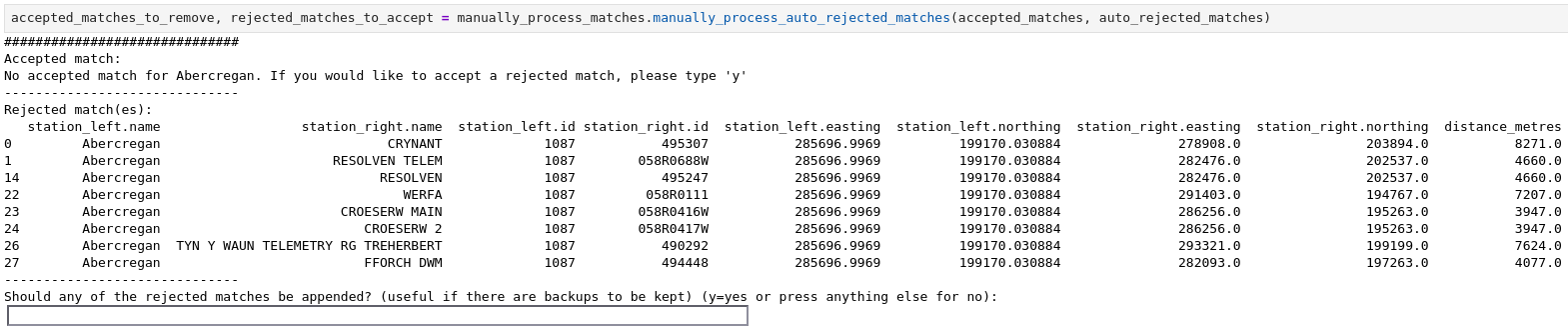
The prompts will look like this:
Making mistakes when running through the prompts
If you make a mistake whilst responding the prompts, simply interupt the process and run that line again
3.2.1 Updating accepted matches
Similar to 3.1.1., you will need to update the accepted matches after running the manual checks of auto-rejected matches:
  # 1. Remove accepted matches manually rejected
  accepted_matches = (
    manually_process_matches.remove_matches_by_indices(
      accepted_matches,
      idx_to_remove=accepted_matches_to_remove
      )
    )

  # 2. Add new matches previously rank-rejected
  accepted_matches = (
    manually_process_matches.add_new_rows_to_match_df(
      accepted_matches,
      new_matches_to_add=rejected_matches_to_accept
      )
    )
3.3 Checking for duplicates in matches
Finally, it is important you check for duplicates in the matches last. The previous two steps may generate these duplicates that will then need to be cleaned up. Let's assume that we do not want any backups so we are only looking for one station from station_list_1 to match with one station from station_list_2:
  import pandas as pd
  from raingaugematcha import manually_process_matches

  # final_accepted_matches ==  the output of steps 3.1 & 3.2 above
  many_to_one_left_stations = manually_process_matches.get_matches_with_duplicates(final_accepted_matches, match_col="station_left.name")
  many_to_one_right_stations = manually_process_matches.get_matches_with_duplicates(final_accepted_matches, match_col="station_right.name")

  # Check duplicates one left to many right
  accepted_matches_to_remove = (
    manually_process_matches.manually_process_duplicate_matches(
      final_accepted_matches,
      duplicate_matches=many_to_one_left_stations,
      duplicate_matching_col="station_right.name",
      create_backups=False
    )
  )

  # Check duplicates one left to many right
  accepted_matches_to_remove = (
    manually_process_matches.manually_process_duplicate_matches(
      final_accepted_matches,
      duplicate_matches=many_to_one_right_stations,
      duplicate_matching_col="station_right.name",
      create_backups=False
    )
  )
The prompt will then look like this:

And you can remove those duplicate matches with:
  final_accepted_matches = (
    manually_process_matches.remove_matches_by_indices(
      final_accepted_matches,
      idx_to_remove=accepted_matches_to_remove
      )
  )
3.4 Allowing backup matches
Sometimes rain gauges have backups.
Let's assume that we want to allow for backups and that we are looking for one station from station_list_1 (left) to match with many station from station_list_2 (right).
Setting allow_backups=True will allow you to accept backups to a given station.
Scripts for allowing backups can be generated like:
from raingaugematcha import run_matching_algorithm

matches, accepted_df, rank_rejected_df, auto_rejected_df = (
    run_matching_algorithm(
        station_list_1,
        station_list_2,
        output_dir='matching_outputs',
        save_outputs_to_csv=True,
        save_manual_matching_script=True,
        save_manual_matching_notebook=True,
        allow_backups=True,
    )
)
After running through and checking the rank- and auto-rejected matches, you will get to checking the duplicates (step 3.3), this will run a line similar to:
```python
from raingaugematcha import manually_process_matches

# Allow for one left to many right
accepted_matches_to_remove, backup_station_indices = (
  manually_process_matches.manually_process_duplicate_matches(
    final_accepted_matches,
    duplicate_matches=many_to_one_left_stations,
    duplicate_matching_col="station_left.name",
    create_backups=True
    )
  )

# Disallow for one right to many left
accepted_matches_to_remove, backup_station_indices = (
  manually_process_matches.manually_process_duplicate_matches(
    final_accepted_matches,
    duplicate_matches=many_to_one_right_stations,
    duplicate_matching_col="station_right.name",
    create_backups=False
    )
  )

```
The prompt for creating a backup will look like this:

Get in touch with the developers @ UKCEH via email if you have any questions...